 Bijay
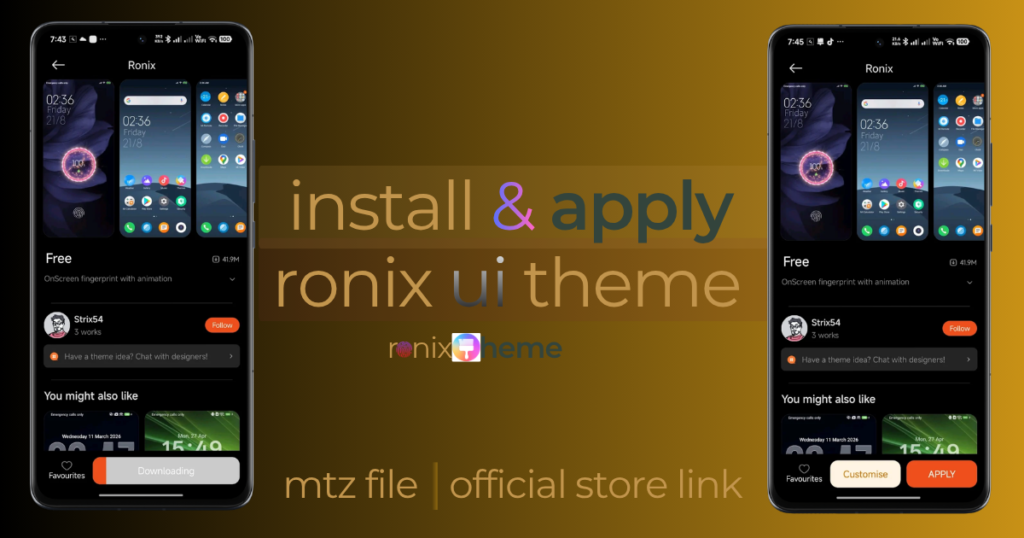
To install MIUI or HyperOS themes, start with the Themes app on your Xiaomi, Redmi or POCO phone. Find the correct listing, download the theme and tap Apply. Depending on the package and your software, the theme can change your wallpaper, icons, lock screen, system accents and charging visuals.
If you already have an .mtz file, check whether your version of Themes offers Import. Some builds do; others do not. Below, you will find the official app and store-link steps, followed by the supported import route and an explanation of third-party installer risks.
We checked Xiaomi’s published download and component-selection guidance and compared the linked MTZ method with Google’s security guidance. Device-specific results still depend on the phone, full software build and theme package involved.
Before you start: Note your phone model and complete MIUI or HyperOS build. Save a screenshot of your current home and lock screens so you can compare the result or restore your earlier look. A theme changes the interface; it cannot add fingerprint hardware or improve charging speed.
Quick route: which method should you use?
A theme name
Recommended next stepSearch for it in your phone’s built-in Themes app
What to expectThe easiest way to review the current listing, designer and price
A verified official store link on a website
Recommended next stepOpen the link on your phone and choose the Themes app
What to expectIt should open that theme’s listing; check its identity before downloading
An .mtz file and an Import option in Themes
Recommended next stepImport the file through the app, if your build permits it
What to expectAvailability and persistence vary by device and software
An .mtz file but no supported import option
Recommended next stepLook for the official listing or another supported theme
What to expectA third-party installer is a separate, higher-risk route and may not work
Xiaomi’s Themes guidance describes downloading and applying themes and, on supported versions, choosing components such as the lock screen, home screen, system and icons. Menus change across MIUI, HyperOS, phone models and regions, so follow the labels shown on your own device.
Method 1: Install from the official Xiaomi Themes app
If you know the theme’s name, open Themes on your phone and search for it. Read the result before pressing Download: several packages can share similar names or previews.
- Open Themes. Use the app supplied with your compatible Xiaomi, Redmi or POCO phone. If you cannot find it, search your app list or open Settings → Themes if that option is present.
- Search for the exact name. Compare the designer, screenshots and description. For a theme with a name like Ronix UI, do not assume that a result labeled only “Ronix” is the same package.
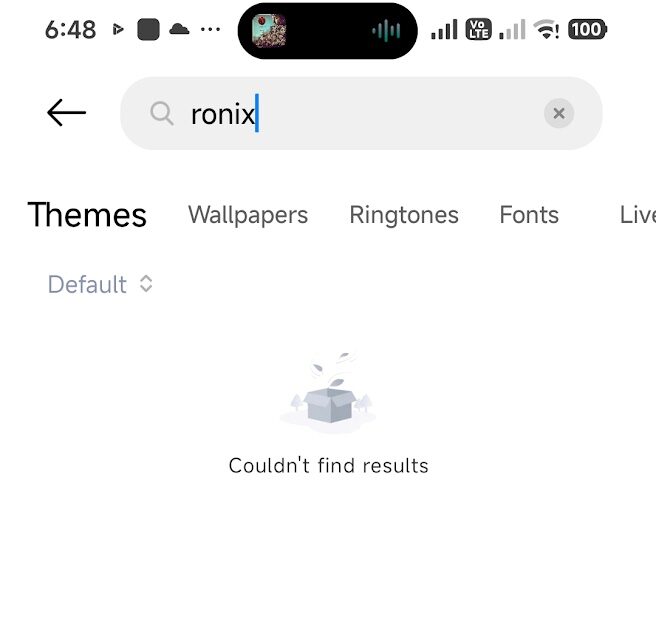
- Check the current listing. Read any device notice, price or purchase conditions. What an older blog post called “free” may differ from your region’s current listing.
- Tap Download. Let the Themes app complete its normal process.
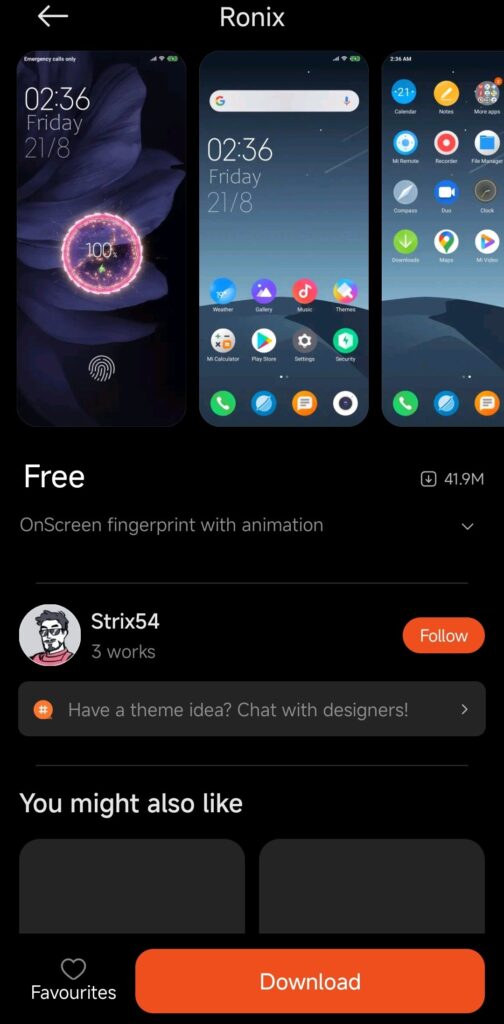
- Tap Apply. If the app offers component choices, select the lock screen, home screen, system and/or icons you actually want. You can try a smaller change first.
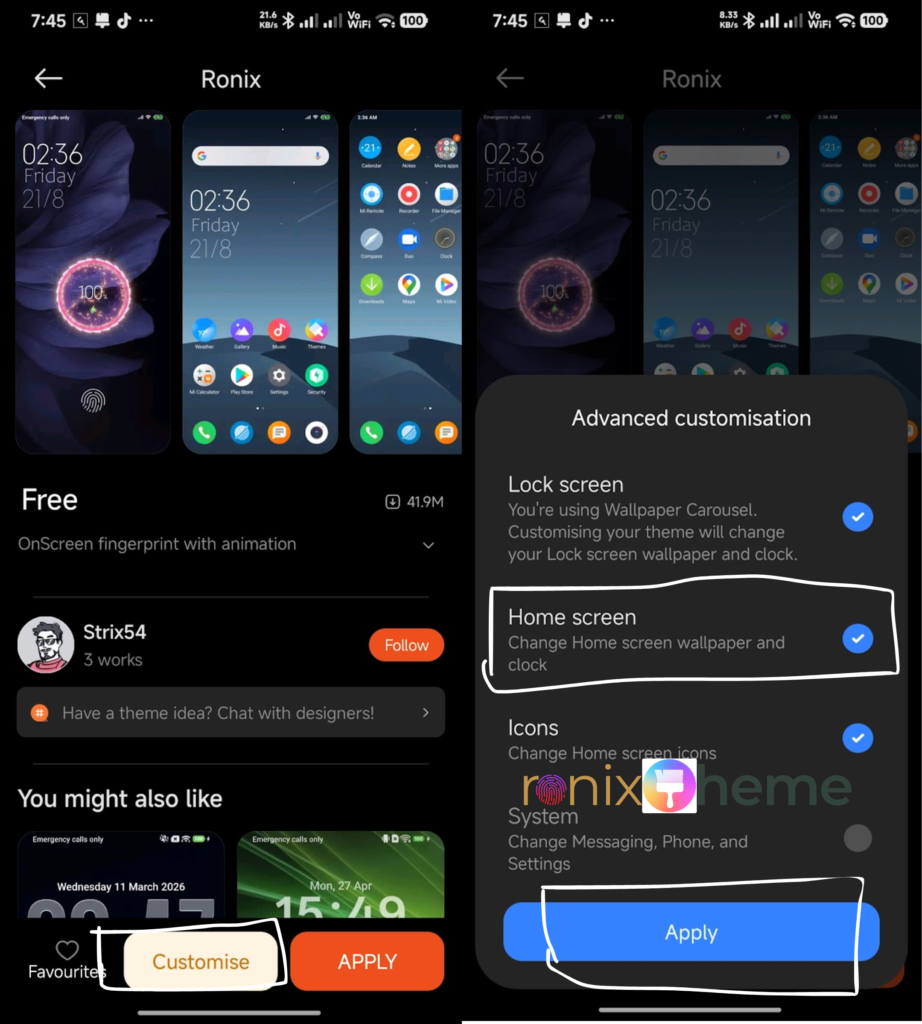
- Review the result. Lock and wake the phone, look at notifications and icon labels, and connect a charger if the theme advertises a charging effect.
Method 2: Open an official theme link from a website
Sometimes you find a theme through an article rather than by searching inside Themes. The link-opening workflow is Mi Browser → official store link → Themes app → Download → Apply. Use these steps when a normal tap does not open the Themes app directly.
- On your Xiaomi, Redmi or POCO phone, copy the article page’s URL from the browser address bar.
- Open Mi Browser and paste that URL into its address bar. This opens the same article in Mi Browser. You do not need to search for the URL as ordinary text.
- Scroll to the article’s download section. Tap the link clearly labeled Official Store Link for the theme you actually want.
- If Android asks whether to continue in a browser or Themes, choose Themes. A supported deep link may open Themes immediately without showing a chooser.
- Check that the listing’s name, designer and preview match the article. If they do not, go back instead of downloading the wrong package.
- Tap Download in Themes. Once it finishes, tap Apply and select components if that option is offered.
If the link stays in the browser: Look for a browser menu option such as Open in app, or try the phone’s default browser. If no matching Themes listing opens, search for the name directly in Themes. Do not treat a website’s “official” label as proof: check where the button leads and what the app displays.
Mi Browser can help with this link-opening workflow. It is not a universal requirement for every theme or phone. A verified link may also work in another browser.
Why the same theme may not appear on another phone
The Xiaomi account region, system region, theme availability and supported software can affect what appears in Themes. Xiaomi says that signed-in users see Themes content based on their account region; without a signed-in account, the phone’s region is used.
If a link works for a friend but not for you, record the theme name, phone model, complete software build, region and any on-screen error. Check for a current listing on your own phone. Do not repeatedly switch regions or install an unrelated APK just to reproduce a screenshot from a different device.
Method 3: Install an MTZ file when your Themes app supports import
An .mtz file is a theme package, not an Android app. It should not be opened as though it were an .apk, and renaming either file’s extension does not convert it.
Use the built-in Import option only if your version of Themes actually offers it:
- Obtain the MTZ from a source you can identify. Confirm that the designer has permitted distribution and the file is the intended theme. Save it in a folder you can find, such as Downloads.
- Open Themes, then your downloaded themes or profile area. Look for Import or an equivalent option. Its location and availability differ across versions and ROMs.
- If Import is present, choose the
.mtzfile and follow the on-screen prompts. Inspect the imported theme’s name and preview. - Apply it, then check the wallpaper, lock screen, icons and any advertised animation separately. Restart once only if the app instructs you to or a visible element needs a normal refresh.
- Check again after a reboot and after a future system update. If the theme reverts, do not describe it as permanent on your build.
If Import is missing or the app rejects the file, stop there. That is useful compatibility information, not a signal to change every security setting on your phone. Look for the creator’s official listing or a supported alternative.
What the MTZ Installer Pro method involves
The MTZOnly installation article describes MTZ Installer Pro, an external APK. Its setup asks for:
- Background autostart: allows the installer to start in the background.
- No battery restrictions: permits more background activity instead of normal battery limits.
- Restricted settings access: removes a protection around sensitive app capabilities.
- Hyper Theme Service accessibility access: grants sensitive access beyond selecting a theme file.
- A lock in Recent apps: keeps the installer from being dismissed in the usual way.
- Play Protect disabled if installation is blocked: removes a security check; we do not recommend doing this.
After that setup, the source says to choose Apply MTZ and select the file. These are reported requirements, not recommended installation steps. The source cannot guarantee the APK’s security or continued operation after updates. Its “permanent” claim should not be treated as a promise for your phone.
Google explains that Play Protect checks apps from outside Google Play. Google’s restricted settings guidance also explains that accessibility access can let an app read screen content and interact with other apps on your behalf. These are substantial permissions for a cosmetic change, especially when an installer’s developer and behavior have not been verified.
Keep Google Play Protect enabled. Do not grant accessibility or restricted-setting access to an installer you cannot verify. We do not recommend this method or provide its APK download. If your Themes app lacks a supported import route, choose an available official-store theme instead.
Check the result after applying a theme
Spend a minute using the phone normally. The lock screen should show the date and notifications clearly. App labels should remain readable against the wallpaper. Test your existing fingerprint sensor or PIN as normal; a painted fingerprint icon does not add a sensor to the display.
If the theme advertises a charging animation, connect a charger and watch the charging screen. The graphic may be absent even when the rest of the theme applies. It does not measure charging speed or battery health.
If only one part works, record that part. “Wallpaper works, lock screen does not” is much more helpful than “theme not working.” A model, software build and region make such a report useful for another reader.
Fix common installation problems
The official link opens a blank page or the wrong app
Open the article on the phone, try Mi Browser as described above, and choose Themes if Android offers an app chooser. You can also search for the exact theme name in Themes. If the destination shows a different theme, do not press Download.
The theme does not appear in search
Check spelling, account region, system region and whether the listing is still available. Look for a current official listing rather than relying on a file-sharing page that copied an older article.
Only the wallpaper or icons changed
Check whether you applied individual components. If your version offers a lock-screen component, select it and test again. Some theme parts may not work on a newer system build even if another part still does.
The fingerprint animation does not unlock the phone
Check the actual fingerprint sensor’s location. Continue using the phone’s enrolled biometric method or screen-lock credential. A theme image is not a new biometric authentication method.
The MTZ file is rejected or the Import option is gone
Your Themes build may not support that import route, or the file may be incompatible. Check the current official listing. Do not rename the file, disable Play Protect, or install an unknown service simply because a menu is missing.
The layout overlaps after applying
Record your display size and font-size settings and take a screenshot. Try applying fewer components if offered. If important controls or notifications remain hard to read, restore the previous theme.
How to restore the default theme
Open Themes, go to your themes or profile area, and choose Default, Classic or another original theme available on your phone. Tap Apply. If only some components change, check whether the lock screen, icons and system appearance were applied separately. Use your earlier screenshots to compare the result.
Frequently asked questions
No APK is needed for a theme downloaded through the built-in Xiaomi Themes app. An MTZ package is also different from an APK. A third-party MTZ installer, where used, is a separate app with separate security implications.
No universal compatibility should be assumed. Check the current listing on your device and test each component after applying. A theme can partially work or change after an OS or Themes app update.
It depends on the device, software, source and method. Recheck after a reboot and system update. A guide’s “permanent” headline is not a guarantee that a third-party method will continue to work.
If your Themes app shows component choices, select the parts you want. Xiaomi documents this option on supported software; available controls may differ on your phone.
Themes content can depend on the Xiaomi account or phone region, and a designer may change or remove a listing. Check the result in your own Themes app and avoid substituting a different package solely because its name looks similar.