 Bijay
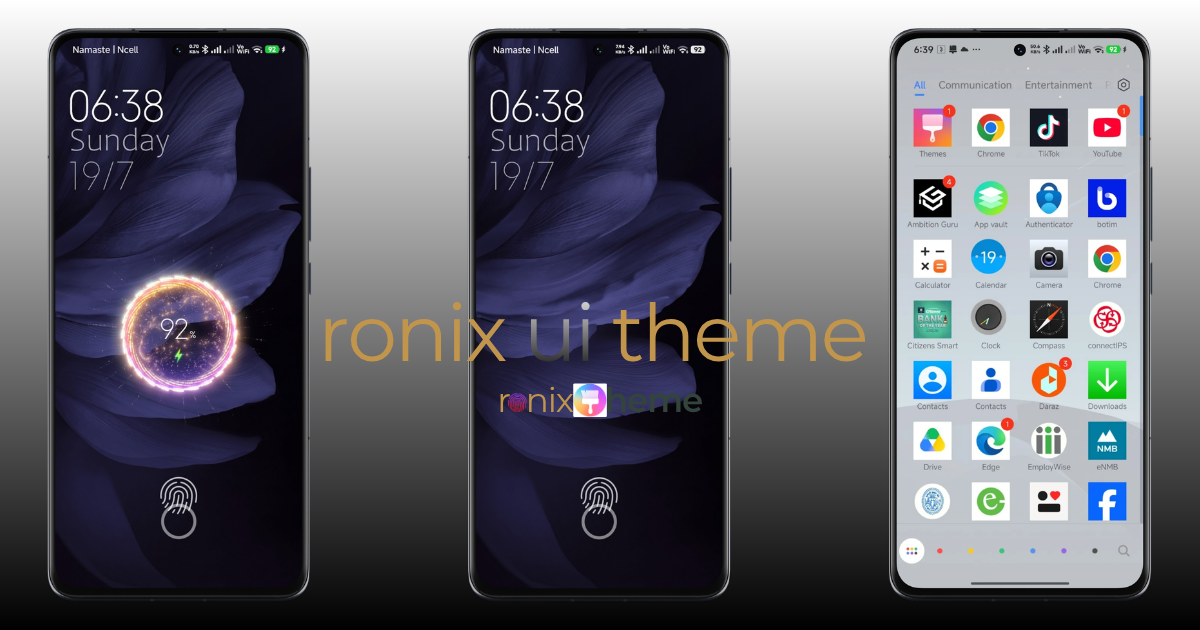
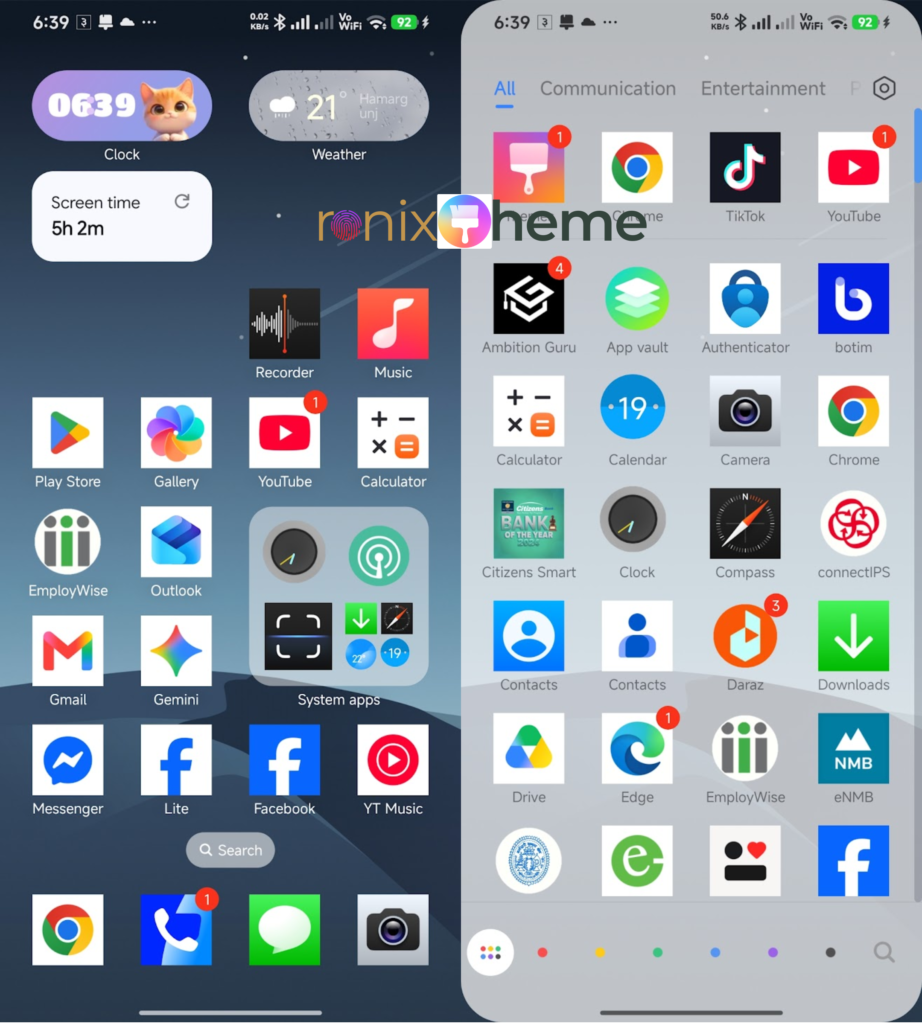
The Ronix UI Redmi theme is worth a closer look if you want more than a new wallpaper. Its listed features include an animated fingerprint-style lock screen, charging effects, and rounded icons. The aim is a coordinated appearance from the moment you wake the phone to the home screen you use throughout the day.
Finding the right package matters, though. Search results often mix Ronix UI with the older Ronix theme, and a familiar thumbnail is not enough to tell them apart. Start with the name and designer, then compare the actual preview.
There is also one detail no theme can change: your phone’s fingerprint hardware. A glowing fingerprint graphic can change the look of the screen, but it cannot turn an ordinary display into a biometric scanner.
Ronix vs. Ronix UI: choose the right theme
These names are similar enough to cause confusion when you are following an old video or download tutorial. Use the table below as an identification aid, then check the current listing on your own phone.
Reported designer
Original RonixStrix54
Ronix UIStrix5428
Reported package size
Original RonixApproximately 41.8 MB
Ronix UIApproximately 51.87 MB
UI style
Original RonixEarlier MIUI design with a fingerprint-focused lock screen
Ronix UIRounded icons and a customizable lock-screen design
Reported key features
Original RonixFingerprint-style and charging animations
Ronix UIFingerprint-style animation, changeable charging animation, and lock-screen customization
These are historical, third-party descriptions, not a current device compatibility test. Sources: original Ronix description and Ronix UI listing.
Do not choose by file size alone. A revision can change the download size, while an unrelated upload can reuse a familiar name. Compare the name, designer, and preview as a set. If you specifically want Ronix UI, a download labeled only “Ronix theme” deserves another look before you apply it.
What the Ronix fingerprint animation can and cannot do
The attraction is the visual effect. A fingerprint-shaped element can make the lock screen feel more animated and distinctive, especially when it fits the wallpaper and clock layout.
It is not a replacement for your phone’s real screen lock. Android biometric authentication depends on supported hardware and enrolled credentials, as explained in Android’s biometric documentation.
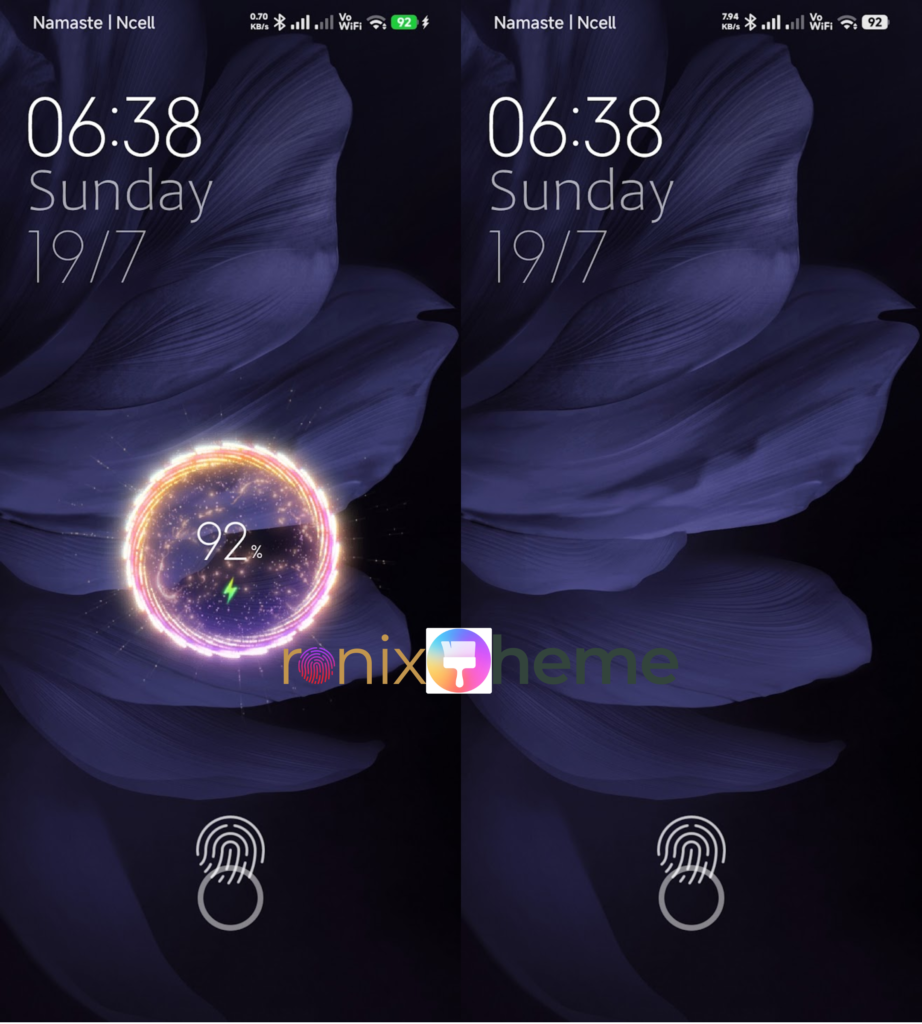
If your Redmi has a side-mounted reader, continue using that reader. Touching a decorative fingerprint picture elsewhere on the display does not move the sensor. A phone without fingerprint hardware cannot gain it from a theme download.
Check the listing’s lock-screen preview against what appears on your phone. A fingerprint graphic is a visual effect; your device’s existing PIN or fingerprint sensor still handles authentication.
Keep your normal PIN, password, pattern, or supported biometric authentication enabled. When checking a new theme, observe the animation and successful authentication separately. A visual effect appearing correctly tells you nothing by itself about authentication.
Before downloading: check your model and software
A useful setup guide starts with the phone in your hand. Open its settings and find the device information. Record the complete model name and MIUI or HyperOS build, not just “Redmi” or “HyperOS.”
Also note the region selected for your phone and Xiaomi account. Take a screenshot of your existing home screen and lock screen, and save the name of the theme you currently use. These references make it easier to restore the appearance you prefer.
Device
What to saveFull model name
Software
What to saveComplete MIUI or HyperOS build
Region
What to savePhone region and Xiaomi account region
Current appearance
What to saveTheme name and screenshots
New theme
What to saveDisplayed name, designer, and preview
Components wanted
What to saveLock screen, wallpaper, icons, or the full design
Screenshots preserve a visual reference; they do not back up your phone’s data. You also do not need to alter several settings in advance. Apply the theme first, inspect the result, and make any further adjustments one at a time.
Ronix UI theme download: use the Themes app
Begin with the Themes app already installed on your compatible Xiaomi, Redmi, or POCO phone. Xiaomi documents its theme service as a place to find and apply appearance resources.
Search for Ronix UI and open the matching result. Check the designer and preview before using the download control. If you broaden your search to Ronix, remember that the results may refer to the older package.
Find the theme: Open Themes → Search → Ronix UI, then inspect the matching listing. A web download button should lead to that same identified package.
Why Ronix UI may not appear in search
Xiaomi’s region guidance explains that Themes content follows the Xiaomi account region when signed in; otherwise, the phone’s system region is used.
Check those settings and the exact spelling of your search. An old article or a screenshot from someone in another region does not prove that the same result must appear on your phone.
Avoid changing regions repeatedly without recording the starting settings. First note the search term, region, device build, and any error message. That information helps distinguish an availability question from an installation problem.
For the full official-store and MTZ installation process, see https://ronixui.com/how-to-install-miui-themes/.
How to apply the Ronix UI Redmi theme
Follow the labels shown on your phone. The workflow below uses the normal Themes-app route; component menus and button names may differ between software builds.
Step 1: Open the Themes app
Open the Themes app already installed on your compatible Xiaomi, Redmi, or POCO phone. Confirm that the app loads its normal theme catalog.
Step 2: Search for Ronix UI
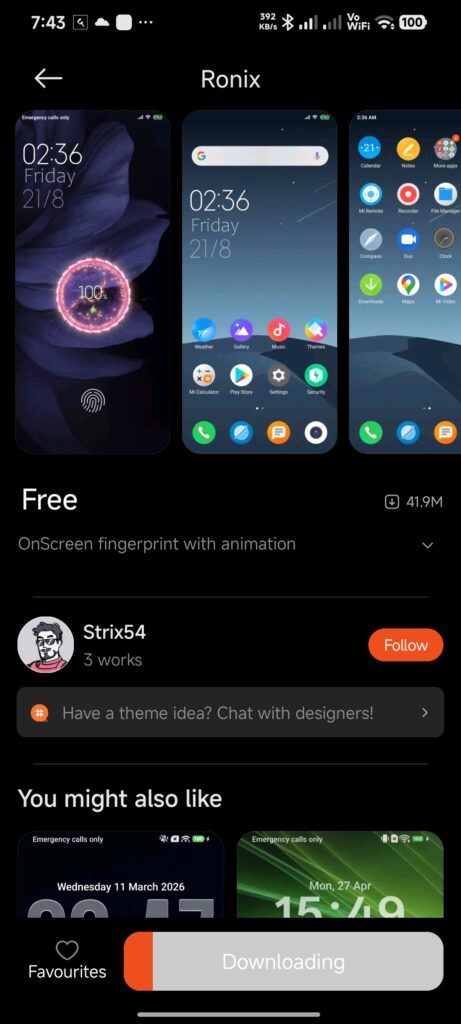
Enter Ronix UI in the search field. Open a matching result and compare its name, designer, and preview. The historical Ronix UI listing identifies the designer as Strix5428.
Step 3: Check the listing details
Read the current description, any compatibility notice, and the price or download conditions. Make sure the preview shows the design you want before continuing.
Step 4: Download through Themes
Use the download control provided by the Themes app and complete its normal store process. Wait until the theme finishes downloading.
Step 5: Apply the components you want
Tap Apply when available. If component selection is offered, choose the parts you want and include Lock screen to try the fingerprint-style design.
Step 6: Inspect the home screen
Return to the home screen. Check the wallpaper, icon labels, folders, and important shortcuts for readability and overlap.
Step 7: Check the lock screen
Lock and wake the phone. Compare the design with the selected listing and verify that your normal screen-lock method still works.
Step 8: Check the charging display
Connect a charger and observe the charging display separately from the ordinary lock screen. Confirm that the phone shows its normal charging indication, even if a themed animation is absent.
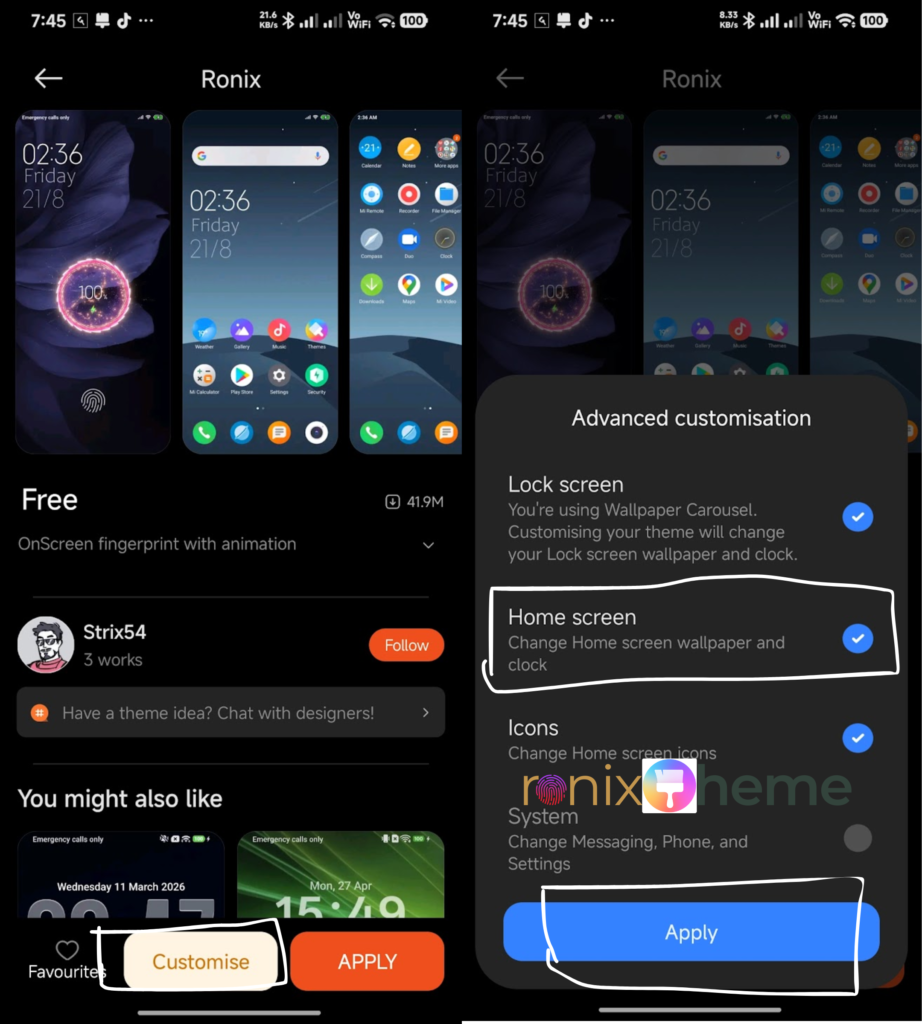
After applying the theme, resist the urge to change the wallpaper, text size, lock-screen style, and icon layout all at once. Inspect the original result first. If an element later overlaps, you will have a clearer idea of which adjustment caused it.
Check the home screen and charging animation
The first preview can look impressive, but a theme has to remain useful after the novelty wears off. Check the screens you rely on every day.
Home screen: look beyond the wallpaper
Read the app labels at your usual viewing distance. Open a folder, inspect your most-used shortcuts, and check whether the wallpaper makes the text difficult to see. If you prefer larger text, evaluate the layout with that setting rather than shrinking it just to match a promotional image.
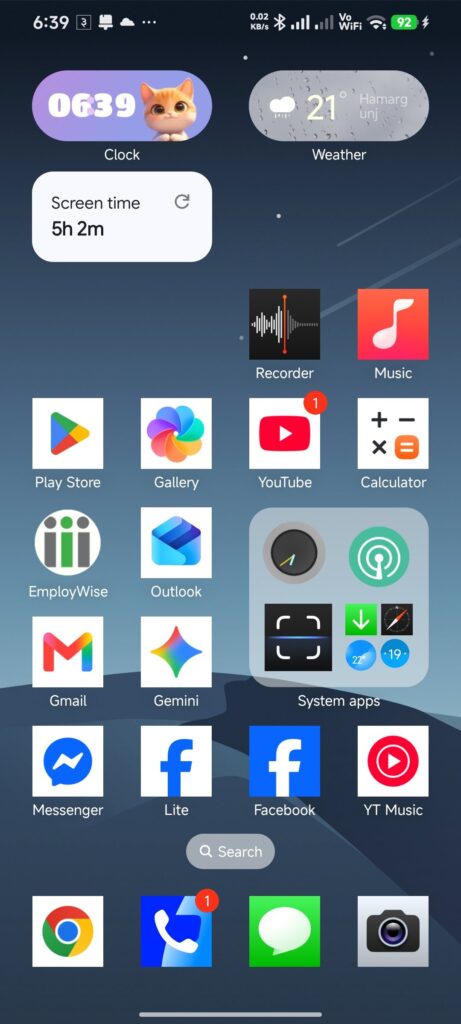
If separate components are available, you may prefer only the wallpaper or icons. Choose the parts that improve your daily use instead of keeping every visual change simply because it belongs to the package.
Charging animation: evaluate the display separately
Connect a charger and observe the screen. Check the ordinary charging indication first, then look for the themed visual described in the listing. Keep these observations separate when reporting a problem.
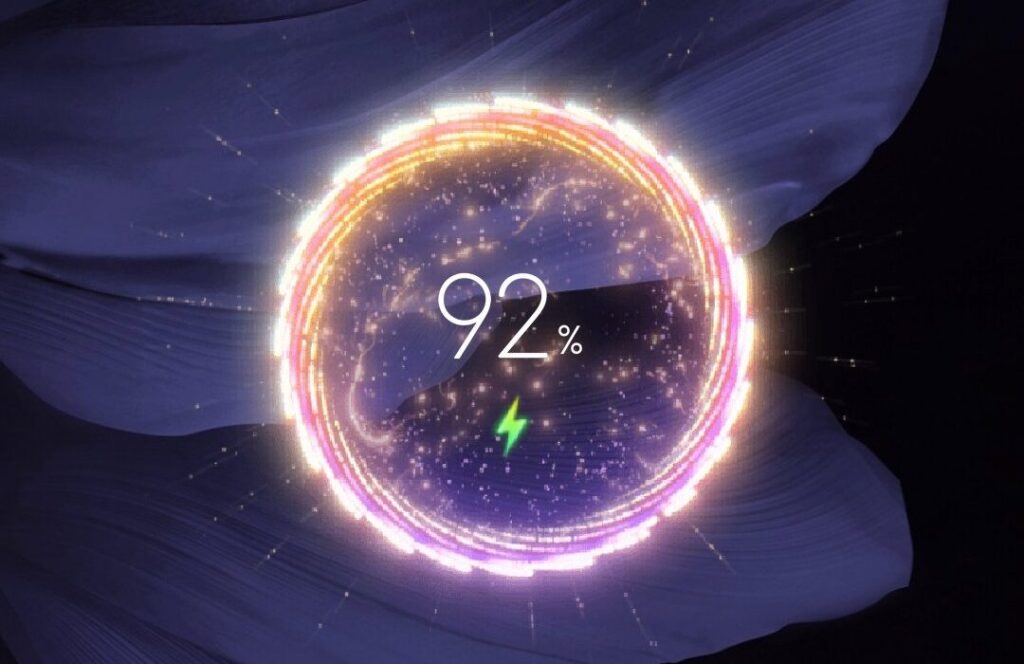
A different animation does not establish faster charging or improved battery health. Judge the graphic for readability and appearance. Do not use its motion or brightness as a performance measurement.
Before keeping the full setup, ask yourself:
- Can I read the clock, battery information, and notifications comfortably?
- Are important controls visible and easy to reach?
- Do the components look consistent together?
- Is the design convenient after several normal screen-lock checks?
- Do I know how to return to my previous theme?
MIUI and HyperOS compatibility: what to verify
Treat MIUI / HyperOS as the platform family to investigate, not a guarantee for every release. Check the current listing and test the components you actually want.
A successful wallpaper change does not confirm that the charging animation works. Likewise, another person’s screenshot does not establish compatibility with your exact device. Useful reports identify the phone, full software build, region, theme version if shown, and the components checked.
If an article says a theme works on “all HyperOS phones,” look for the testing behind that claim. A single installation cannot establish universal support. Be especially careful when a guide combines screenshots from different versions without labeling them.
Do not infer Samsung, OPPO, vivo, or other-brand support from the word Android. The relevant question is whether the device’s own theme system supports the package. A shared operating-system family is not enough to establish that.
Need help applying a theme on your software build? Follow the step-by-step guide at https://ronixui.com/how-to-install-miui-themes/.
Ronix theme APK and MTZ downloads explained
Do you need a Ronix APK?
Search phrases such as “Ronix theme download APK” can lead you away from the resource you wanted. An Android application package and a Xiaomi theme resource are different things. For official theme-creation resources, visit Xiaomi’s theme developer documentation. Its package guide describes components such as icons, wallpapers, and lock screens.
For the Themes-app workflow, download the theme inside that app. You do not need a separate Ronix APK for these steps. Check any external download destination carefully rather than assuming its name proves what it contains.
A “latest version” headline should identify an actual release or listing. Without that information, the wording does not tell you whether a package is newer, compatible, or even the right resource.
What if you have an MTZ file?
Use an MTZ file only through a supported workflow for your exact software, after checking its source and theme identity. Do not assume that every MIUI or HyperOS build provides the same import menu.
If an import option exists, follow the instructions for that device and build. If it does not, use an available store listing or another supported theme. A guide promising permanent installation on every phone needs evidence for that claim.
Renaming an APK to MTZ, or changing an MTZ extension to APK, does not convert the package into the other format. Keep the file type and installation method consistent.
Troubleshooting Ronix UI
The wallpaper changed, but the lock screen did not
Review the components selected during application. If a Lock screen option is available, confirm that you included it. Lock and wake the phone again before adjusting anything else. If the wallpaper works but the lock screen still differs, report those results separately.
The fingerprint graphic appears, but touching it does nothing
Check the physical location of your phone’s real sensor. Use the sensor and security settings that normally authenticate you on the device. A decorative graphic is not a hardware test, and it does not need to respond like a real in-display reader.
The charging animation is missing
Confirm that the exact listing you downloaded describes that effect. Connect the charger and note whether the normal charging indicator appears. If charging works but the visual is absent, report a missing theme effect rather than a charging failure.
Text, the clock, or controls overlap
Take a screenshot and record your display and text-size settings. Compare the result with your previous theme. Avoid making several adjustments together; test one change at a time. If important information remains unreadable, restore the previous design.
The theme changed after a system update
Record the new build and repeat the same component checks. Note whether the issue began immediately after the update or was already present. Include both the working and affected build numbers if you have them.
You want to restore your old appearance
Return to your saved or previously used themes in the Themes app, select the earlier design, and apply it. Review the available component choices so that you restore the lock screen as well as the wallpaper if needed. Use your starting screenshots to compare the result.
Share a compatibility report that helps other readers
If you leave a comment, include your model, complete software build, region, exact theme name, and the component tested. Then describe what happened in plain language.
“The clock overlaps the date after increasing text size” gives someone a useful problem to investigate. “Not working” leaves them guessing. Successful reports deserve the same care: say whether you checked the lock screen, icons, wallpaper, and charging visual, rather than assuming one working component proves the rest.
Hide personal notifications in screenshots. A clear image of the affected area, paired with the device details, is usually more helpful than several unlabeled pictures.
Frequently asked questions
Search for Ronix UI in the Xiaomi Themes app. Compare the name, designer, and preview before downloading. The historical listing identifies Strix5428 as the designer; a similarly named Ronix result may be a different package.
Use separate component selection if your version of Themes offers it. Choose the wallpaper or icons you want and keep the other components unchanged. The available choices depend on the app and software build.
Check the current Ronix UI listing in the Xiaomi Themes app for its price and download terms. Availability and pricing can vary by region or change over time.
A fingerprint-style animation is a visual customization, not a security upgrade. It cannot add a fingerprint sensor or replace Android authentication. Keep your normal PIN, password, pattern, or supported biometric authentication enabled.
Choose a clearly identified listing supported by your device. Check the displayed theme name, designer, preview, and compatibility information. Do not treat the word latest in a download-page headline as a verified version number.
Check the spelling, your Xiaomi account region, and the phone region. Record your model, complete software build, and any message shown by Themes. Keep your current theme if no matching supported listing is available.
Universal HyperOS compatibility is not established. Check the current listing on your device and test the lock screen, icons, wallpaper, and charging display separately. One successful installation does not confirm every model or software build.
The Themes-app installation route does not require a separate Ronix APK. An Android app package and a Xiaomi theme resource are different things. Do not install an unrelated app solely because its name matches your search.
Author Bio
Bijay is a tech writer with 5+ years of experience covering Android and Xiaomi ecosystem customizations, including MIUI and HyperOS themes, setup guides, and compatibility troubleshooting.